monday Work Management: The Complete Guide 2026

TL;DR: „monday Work Management combines 8+ views, 200+ no-code automations, AI Sidekick & Agents, and multi-board dashboards into one platform – and scales seamlessly with CRM, Dev, and Service."
— Till FreitagWhy "Another PM Tool" Is the Wrong Question
Most teams search for a project management tool – and get exactly that: a tool that manages tasks. But managing tasks isn't the problem. The problem is:
- Marketing plans campaigns in Asana, Sales tracks deals in HubSpot, Dev works in Jira
- Dashboards show data from one silo – never the big picture
- Automations stop at tool boundaries
- Every department has its own "single source of truth" – meaning none
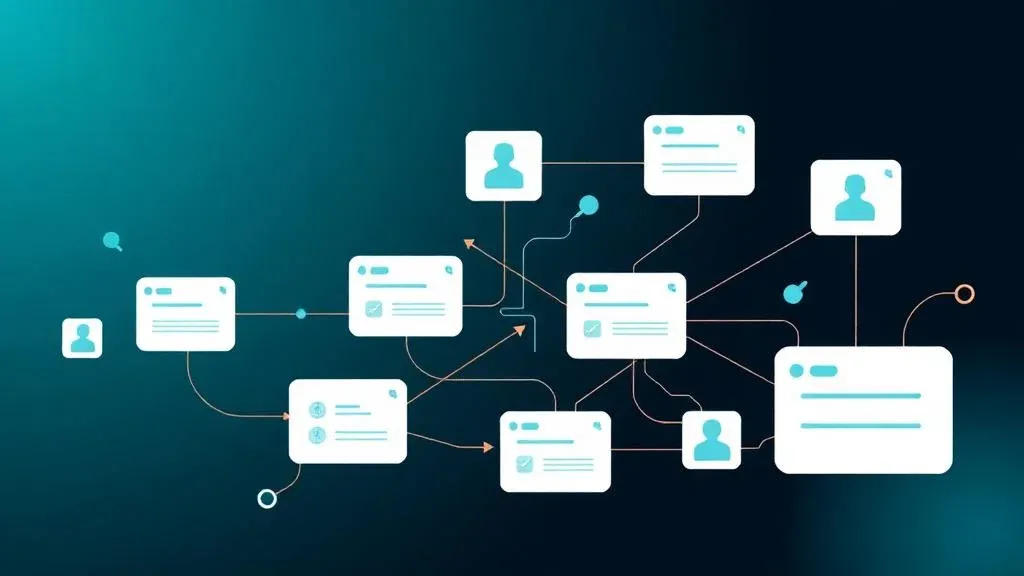
monday Work Management solves exactly this. Not as another PM tool, but as a Work OS – an operating system for all your work.
What Makes monday Work Management Different from PM Tools
One Product, Four Dimensions
| Dimension | What traditional PM tools offer | What monday WM offers |
|---|---|---|
| Tasks | Tasks, Kanban, Lists | Tasks, Kanban, Lists + 6 more views |
| Processes | Simple workflows | 200+ no-code automations, cross-board |
| Intelligence | Little AI | AI Sidekick, Agents, Formula Generator |
| Ecosystem | Standalone | Seamlessly connected to CRM, Dev, Service |
The key point: monday Work Management is the foundation of a Work OS. CRM deals, Dev sprints, and support tickets run on the same platform – with shared automations, dashboards, and permissions.
Views: 8+ Perspectives on Your Work
Views are the heart of monday Work Management. Each view shows the same data from a different perspective – no duplication, no sync issues.
1. Table View (Default)
The foundation: column-based view with unlimited flexibility. Each column is a data type – Status, Date, Person, Dropdown, Formula, Timeline, Phone, Email, and 35+ more.
When to use: As main work surface for structured data management.
2. Kanban View
Drag-and-drop boards grouped by status, person, priority, or any other field. Ideal for visual workflows.
When to use: Agile teams, marketing pipelines, hiring processes.
3. Gantt View
Interactive timeline with dependencies (finish-to-start, start-to-start), critical path, and baseline comparison.
When to use: Projects with fixed deadlines, construction projects, product launches.
4. Timeline View
Similar to Gantt but focused on resource planning across multiple groups. Ideal for the bird's-eye view.
When to use: Portfolio planning, team capacity, quarterly planning.
5. Workload View
Shows utilization per person based on assigned tasks, story points, or custom metrics. Over- and under-utilization instantly visible.
When to use: Resource management, sprint planning, capacity planning.
6. Calendar View
Deadlines and milestones in calendar format – with month, week, and day views.
When to use: Content calendars, event planning, appointment management.
7. Map View
Location-based visualization. Pin tasks, clients, or projects on a map.
When to use: Field service, construction site overview, regional sales planning.
8. Files View
All files from a board at a glance – filtered by file type, upload date, or person.
When to use: Creative reviews, asset management, document review.
9. Chart View
Embedded charts directly in the board: Pie, Bar, Line – based on your board data.
When to use: Quick reporting without switching to dashboards.
Pro tip: Create a saved view for each team with relevant filters and columns. Marketing sees only marketing tasks, Dev sees only dev tasks – all on the same board.
Automations: 200+ Recipes Without Code
Automations are monday Work Management's productivity multiplier. Instead of manual management, you define Trigger → Condition → Action – and the system works for you.
Real-World Examples
| Automation | Saves per week |
|---|---|
| "When Status = Done → notify person + set date" | ~30 min |
| "Every Monday → create weekly tasks from template" | ~1 hour |
| "When Deadline < 2 days → Slack message to team" | Missed deadlines |
| "When all subtasks = Done → set main task to Review" | ~45 min |
| "When new lead in CRM → create onboarding board" | ~2 hours |
Cross-Board Automations
The real game-changer: automations that work across boards.
When [Deal Status in CRM Board] = "Won"
→ Create project in Onboarding Board
→ Assign Account Manager
→ Send welcome email to client
→ Create tasks from onboarding template
This only works because CRM, PM, and Service run on the same platform – no Zapier, no API hassle.
Integration Automations
Automations with external tools – natively built in:
- Slack/Teams: "When status changes → post message to channel"
- Gmail/Outlook: "When email received → create task"
- Google Drive: "When file uploaded → set status to Review"
- Jira: "When Jira ticket created → mirror task in monday"
Dashboards: The Cockpit for Your Team
monday Dashboards are multi-board widgets that aggregate data from any number of boards into a single view. The C-level sees overall progress, team leads see their department – from the same data.
Key Widget Types
| Widget | Function |
|---|---|
| Numbers | KPIs at a glance (open tasks, deal volume, etc.) |
| Chart | Bar, Pie, Line – grouped by any field |
| Battery | Progress bars per project/team |
| Timeline | Gantt overview across all projects |
| Table | Filtered board data as table |
| Workload | Team utilization across all boards |
| Time Tracking | Tracked time per person/project |
| Embedded | Embed external apps (Figma, Miro, Google Docs) |
Dashboard Example: PMO Cockpit
A typical dashboard for a PMO (Project Management Office):
- Row 1: 4× Numbers widgets (Active Projects | Overdue Tasks | Avg Team Utilization | Budget Consumption)
- Row 2: Timeline of all active projects + Battery widget per project phase
- Row 3: Chart (tasks by status) + Workload (utilization per PM)
- Row 4: Table with all blocker tasks (filter: Status = Blocked)
Pro tip: Create an executive dashboard with a maximum of 6 widgets. Less is more – your C-level wants to spot trends, not decode 50 data points.
AI in monday Work Management
AI Sidekick
The AI Sidekick is a context-aware assistant that works directly within boards, updates, and dashboards:
- Summaries: "Summarize all updates from the past week"
- Formulas: "Create a formula that calculates project progress in %"
- Email drafts: "Write a client update email based on current board status"
- Action items: "Extract to-dos from this meeting transcript"
AI Agents
Agents go one step further: they work autonomously based on defined rules:
- "Check all overdue tasks every morning and escalate to the project lead"
- "Analyze new client requests and automatically assign them to the right team"
- "Generate a weekly summary every Friday and post it in Slack"
AI Formula Generator
Complex formulas in seconds: describe what you want to calculate – the AI generates the formula. No formula knowledge required.
Boards, Workspaces & Permissions
Board Types
| Type | Visibility | When to use |
|---|---|---|
| Main Board | All team members | Standard projects |
| Shareable Board | Also for guests (clients, freelancers) | Client projects, freelancer collaboration |
| Private Board | Invited members only | Confidential projects, HR |
Workspaces
Workspaces are logical containers for boards. Typical structure:
- Marketing Workspace: Campaigns, content calendar, social media
- Sales Workspace: Pipeline, forecasting, account management
- Operations Workspace: Processes, resources, projects
- HR Workspace: Recruiting, onboarding, people ops
Each workspace has its own permissions, dashboards, and automations.
Guest Access
Clients, freelancers, and external partners can be invited as guests to individual boards – with restricted permissions. Ideal for:
- Client projects with transparent status tracking
- Freelancers checking off tasks directly in the board
- Agencies collecting client feedback in the board
Integrations: 200+ Native Connections
monday Work Management connects natively with your existing stack:
| Category | Integrations |
|---|---|
| Communication | Slack, Microsoft Teams, Zoom, Gmail, Outlook |
| Cloud Storage | Google Drive, Dropbox, OneDrive, Box |
| Development | GitHub, GitLab, Jira, Bitbucket |
| CRM | Salesforce, HubSpot (or natively monday CRM) |
| Design | Figma, Adobe Creative Cloud, Canva |
| Automation | Make, Zapier, n8n |
| Finance | QuickBooks, Xero, Harvest |
For everything else: monday API (GraphQL) for custom integrations and monday Apps Framework for your own marketplace apps.
monday Work Management vs. the Alternatives
| Criterion | monday WM | Asana | ClickUp | Notion |
|---|---|---|---|---|
| Views | 8+ native | 5 | 15+ | 4 |
| Automations | 200+ no-code | Rule-based | Extensive | Very limited |
| AI | Sidekick + Agents | AI Studio | Brain | Notion AI |
| Multi-product | CRM, Dev, Service | ❌ | ❌ | ❌ |
| Dashboards | Multi-board, 30+ widgets | Reporting | Dashboards | ❌ |
| GDPR/EU hosting | ✅ | ⚠️ US | ⚠️ US | ⚠️ US |
| Guest access | ✅ Shareable boards | ✅ | ✅ | ✅ |
| Price from | €9/user | $10.99/user | $7/user | $10/user |
Detailed comparisons: monday vs Asana | monday vs ClickUp | All PM tools compared
Who Is monday Work Management For?
Perfect for:
- Operations teams that want to standardize and automate processes
- Marketing teams with content calendars, campaigns, and cross-channel planning
- PMOs that need portfolio transparency across all projects
- Agencies that want to manage client projects transparently
- Growing companies that need PM today and CRM, Dev, and Service tomorrow
Less suitable for:
- Solo freelancers with < 5 projects (overkill)
- Teams that exclusively need docs/wiki (→ Notion)
- Pure dev teams without business stakeholders (→ Linear or Jira)
Getting Started with monday Work Management
- Identify processes: What are your 3 most important workflows? (Don't do everything at once!)
- Plan board structure: What boards, groups, and columns do you need?
- Set up automations: Start with 3–5 simple automations
- Build a dashboard: One executive dashboard + one team dashboard
- Onboard the team: A 60-minute session covers the basics
Our offer: As a certified monday.com partner, we guide you from licensing through configuration to enablement – book your free consultation.
Further Reading
- Work Management Explained: The Concept Behind the Buzzword
- monday Work Management + Dev: The Killer Combo for Builders
- The 10 Best PM Tools in 2026 Compared
- monday AI Features: Sidekick, Agents & Vibe Coding
Want to set up monday Work Management for your team? We're happy to help – book your free consultation.
Related Articles
monday.com vs. Asana: Which Project Management Tool Fits Your Team?
monday.com and Asana are among the best project management tools – but a direct comparison reveals why monday.com is the…
Read more
monday.com vs. Notion: Why Notion Isn't a Real Project Management Tool
Notion is an outstanding wiki – but not a project management tool. Why monday.com is the clearly better choice for teams…
Read more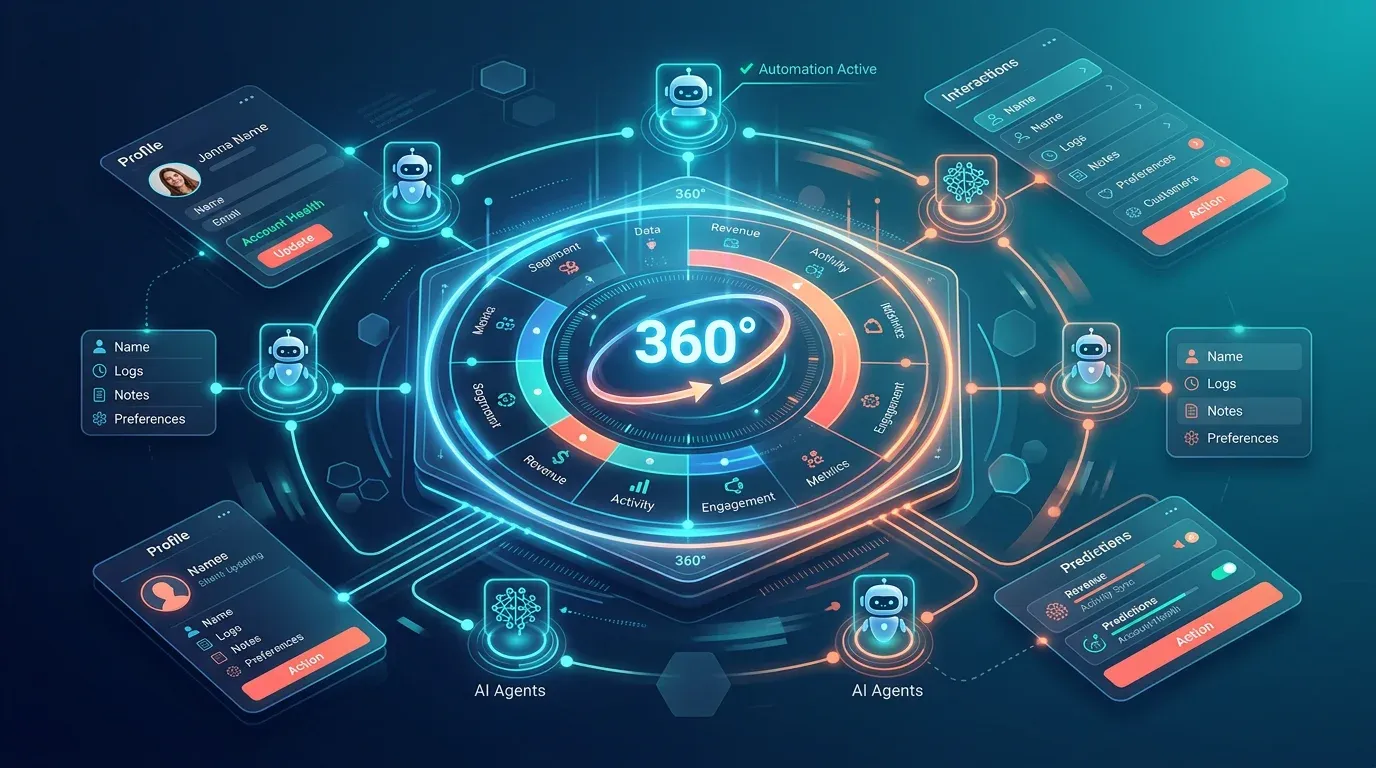
Account360 & Zero Update CRM: The Future of monday CRM (2026)
Account360 delivers the full customer view, Zero Update CRM eliminates manual data entry. How monday CRM is revolutioniz…
Read more
monday Vibe Apps – Build Custom Mini-Applications Without Code (2026 Guide)
monday Vibe Apps let anyone build custom mini-applications using natural language prompts – no code, directly within mon…
Read moreCollaboration in monday.com: How Teams Actually Work Together
Updates, WorkDocs, guest access, dashboards, and AI – how monday.com turns asynchronous teamwork into real collaboration…
Read more
monday.com as Company OS: How We Run Projects, CRM, and Processes on One Platform
No Jira, no Notion, no Asana. How we use monday.com as our single operating system to manage projects, sales, onboarding…
Read more
AI in Project Management: Opportunities, Risks & Actionable Tips
How artificial intelligence makes your project management smarter – with concrete tips you can implement today.…
Read more Deep Dive
The 10 Best Project Management Tools in 2026 Compared
monday.com, Asana, Jira, ClickUp, Notion & more – which PM tool truly fits your team in 2026? The big comparison with AI…
Read more Deep Dive
Syncing Items Across monday.com Boards – The Ultimate Guide
One item, multiple boards – not natively possible in monday.com. Here's every way to do it: from Mirror columns to Marke…
Read more